

Core concepts
Organizations, projects, the canvas, runs, assets, and the library — the Hype Flow mental model.
Five minutes here saves an hour of guessing later.
Organizations
Section titled “Organizations”Everything lives inside an organization — your team’s workspace. Members join by invite (or via an allowed email domain), and admins manage membership and see usage and costs. You can belong to several organizations; when you create a project you choose where it lands.
Projects
Section titled “Projects”A project bundles one canvas with its assets, reference images, library entries, and members. Projects are the unit of sharing: teammates you add can open the canvas, run nodes, and browse assets.
The canvas and nodes
Section titled “The canvas and nodes”The canvas is a node graph. Each node has:
- Inputs and outputs — typed ports (
text,image,video,audio). Edges connect an output to an input of the same type. - Parameters — the controls on the node card: model pickers, aspect ratios, durations, voice settings. Only parameters the selected model actually supports are shown.
Nodes come in a few categories — inputs, model nodes, cinematic writing nodes, template I/O, and output. The node reference documents them all.
Runs, jobs, and generations
Section titled “Runs, jobs, and generations”Running a node executes it against its wired inputs. Quick nodes (text, LLM) return in seconds; heavy generations (video, image batches) are queued as jobs on background workers — you can keep working, navigate away, or come back later; running jobs survive a page refresh and re-attach. Every run is recorded as a generation on the node, so earlier results stay available.
Assets
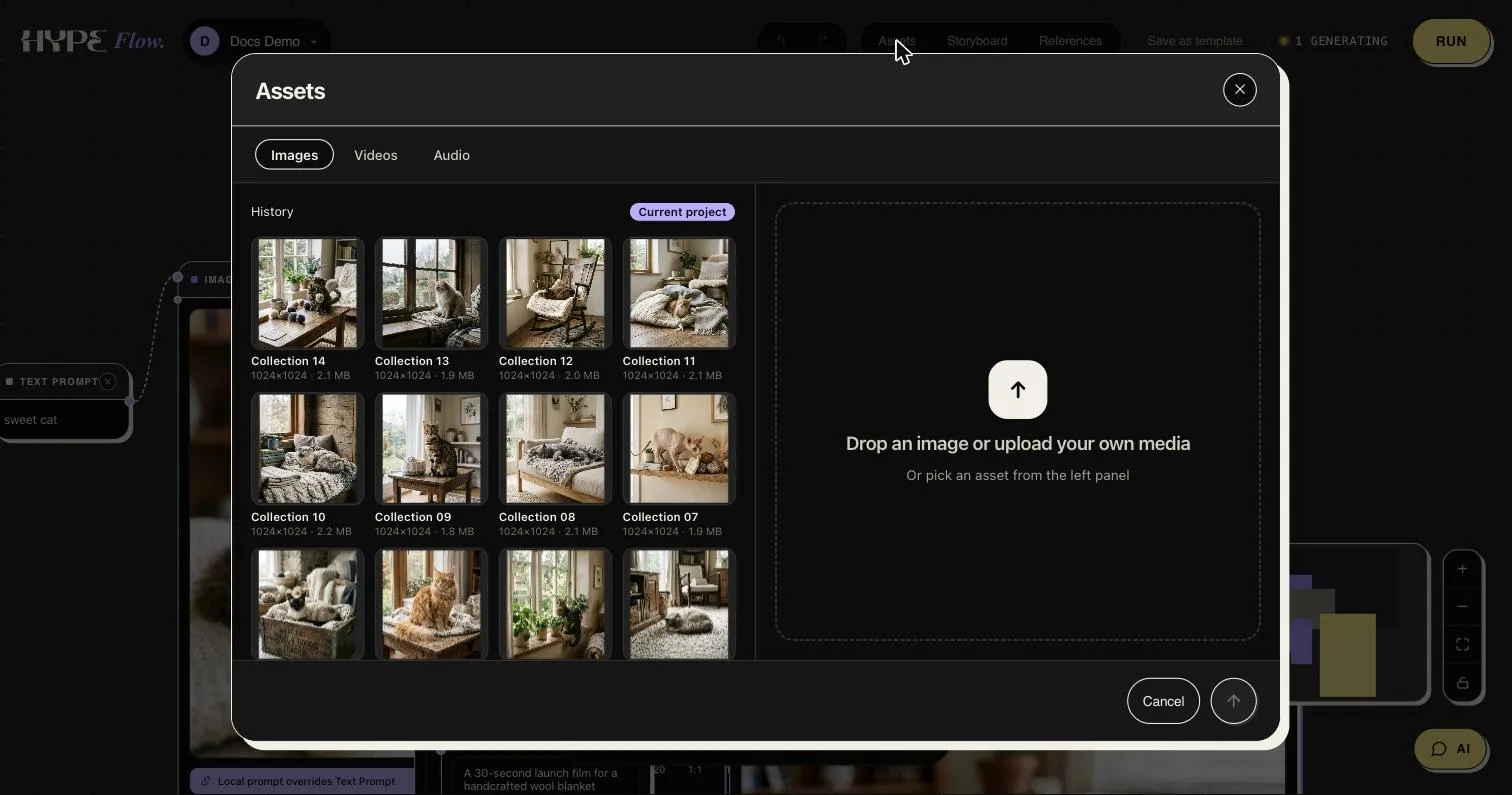
Section titled “Assets”Every generated file — and everything you upload — becomes an asset of the project: images, videos, audio, alongside the prompt and model that produced it. Wire existing assets back into new nodes with the input nodes.
The References library
Section titled “The References library”Every project carries a References panel — a library of reusable,
@-taggable building blocks organized by category: characters, styles,
elements, colors, camera language, effects, negatives, and full style
guides. Mention one by tag in the chat companion
(@brand_look) and its full prompt-ready description is folded into the
prompts it writes — so a look you refined once stays consistent everywhere.
See Styles & the library.
Templates
Section titled “Templates”A canvas that works can be saved as a template: its Template Input nodes become the form fields, and anyone can run it with new inputs without touching the graph. See Templates.